
I Can’t See My Data in QuickBooks Online — What’s Happening?
Just set up your automation and nothing shows up in QuickBooks Online yet? The first sync may still be running. Here is how to check where it stands.
1. Check the status of your automation
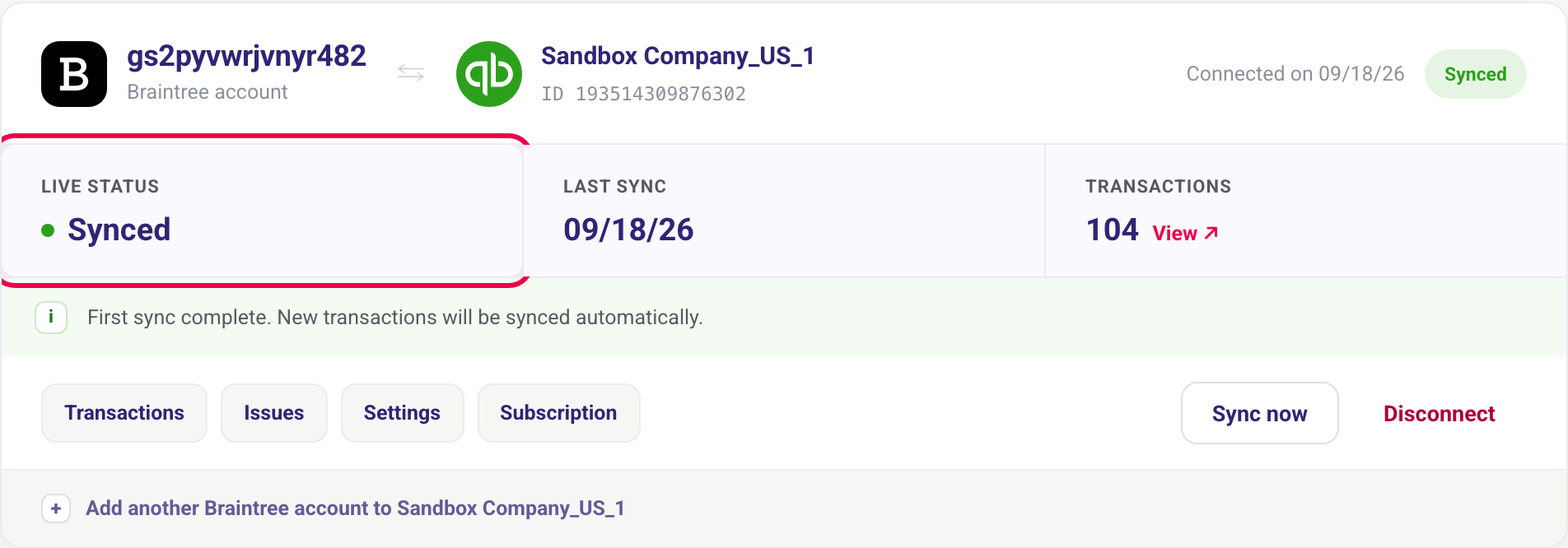
Sign in at app.sush.io. On the Automations page, each automation shows its Live status:
- Running: the sync is in progress. Transactions are being created in QuickBooks Online.
- Synced: the last sync is complete.
- Setting up: the setup isn't finished. Open the automation to complete the remaining steps.
- Failed or Action needed: something blocks the sync. Open the Issues tab to see why.
The Transactions counter shows how many entries have been created in QuickBooks Online.
2. See what has been synced
Click Transactions on your automation. The page lists every entry created in QuickBooks Online, grouped by day. During the first sync, it updates on its own: no need to reload.
Click the number in the QuickBooks entry column to open the transaction directly in QuickBooks Online.
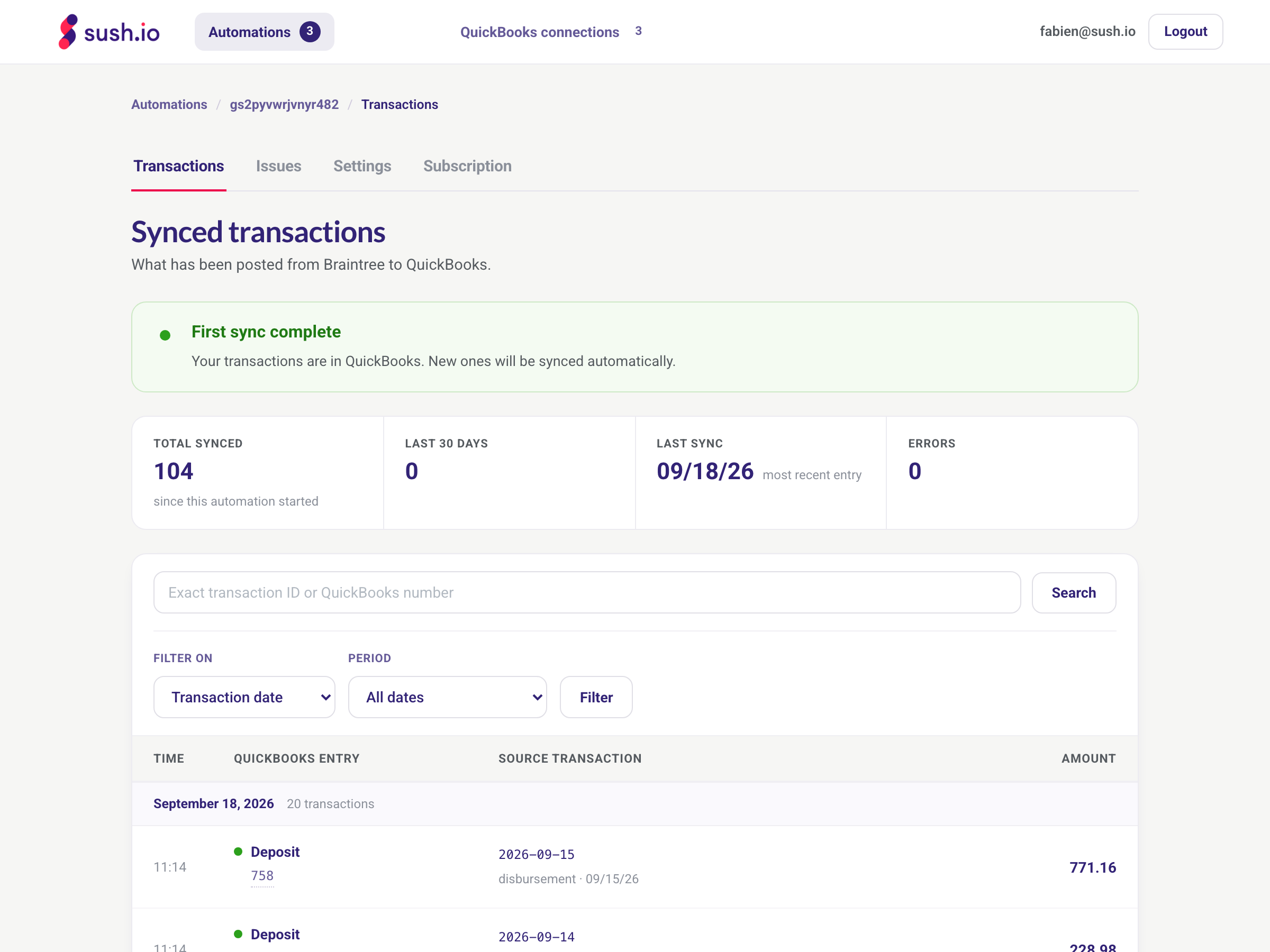
Looking for a specific transaction? Search with its full ID from Stripe, Braintree or Etsy, or with its QuickBooks number, or filter by date.
3. Still nothing?
- Check the sync start date in the automation's Settings: transactions dated before this day are not synced.
- Check that there are transactions in your Stripe, Braintree or Etsy account after that date.
- Open the Issues tab: it lists the transactions QuickBooks Online refused, and why. They are retried at the next sync once the cause is fixed.
- "The sync hasn't started" on your automation? Write to us: we can start it from our side.
Good to know
- The first sync usually takes a few minutes. A long history can take a few hours.
- After the first sync, new transactions are synced automatically every day. Click Sync now to sync sooner (once per hour).
Need help?
Contact us through the Need help? button in the app.