
How to update your billing information
Each automation has its own Sush.io subscription. You can update your card, see your invoices and manage your plan from the billing page of each automation.
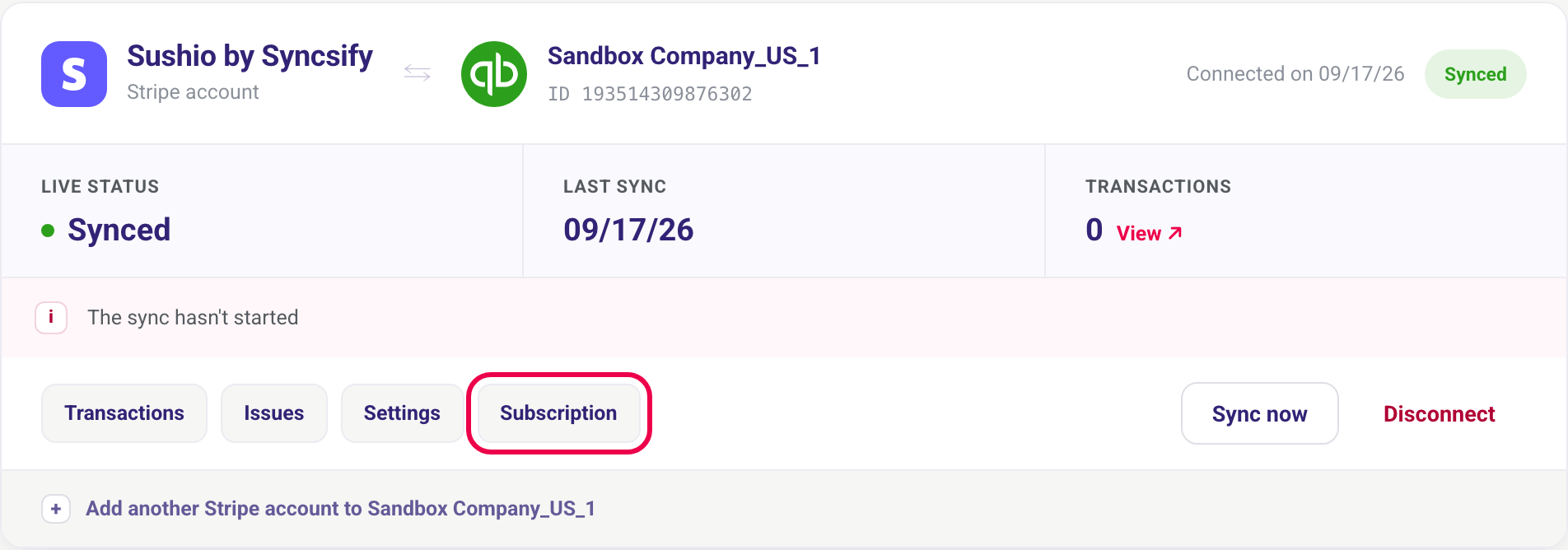
1. Open the Subscription tab
Sign in at app.sush.io. On the Automations page, find the automation and click Subscription.
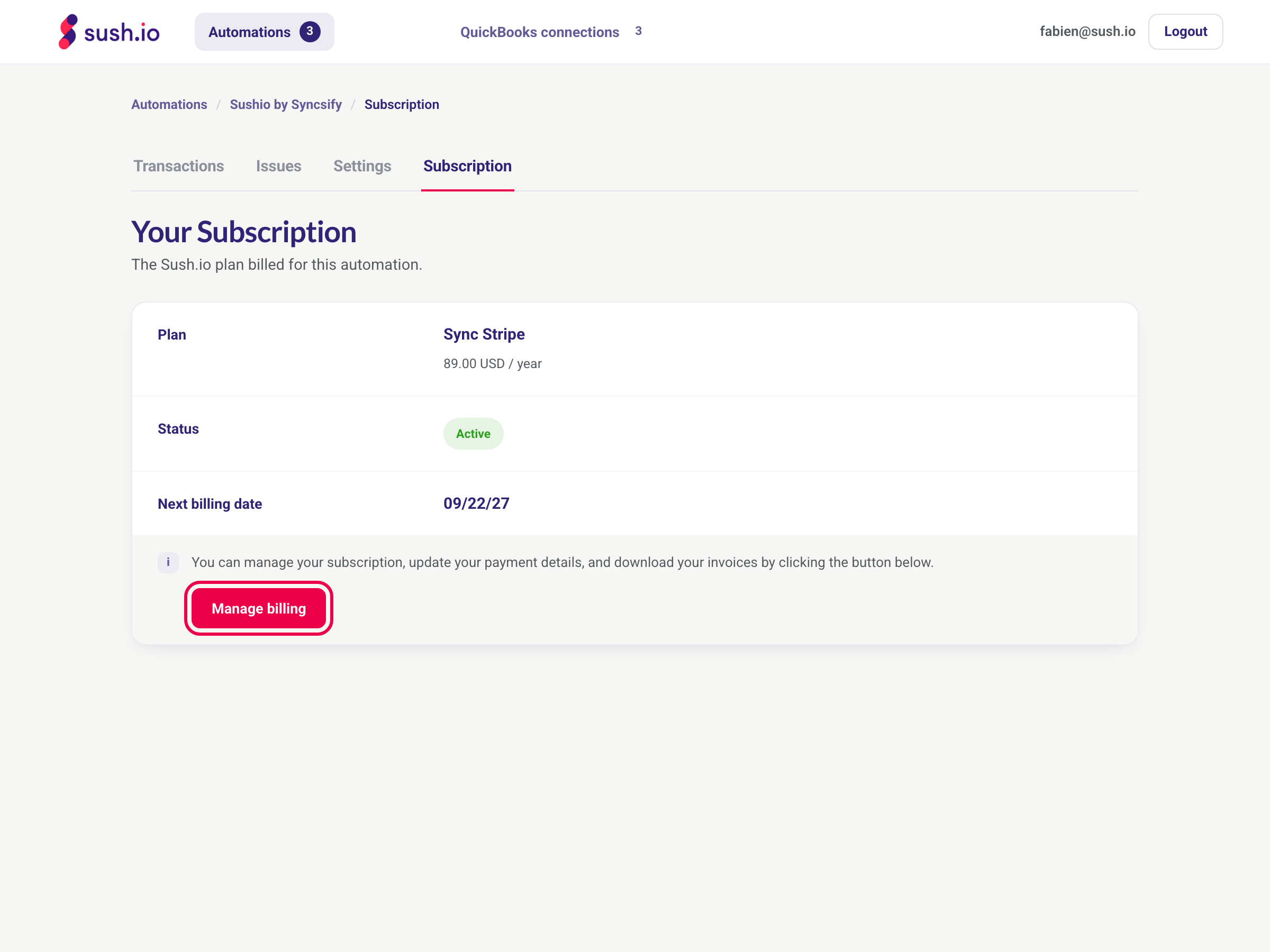
2. Click Manage billing
The Your Subscription page shows your plan, its status and your next billing date. Click Manage billing.
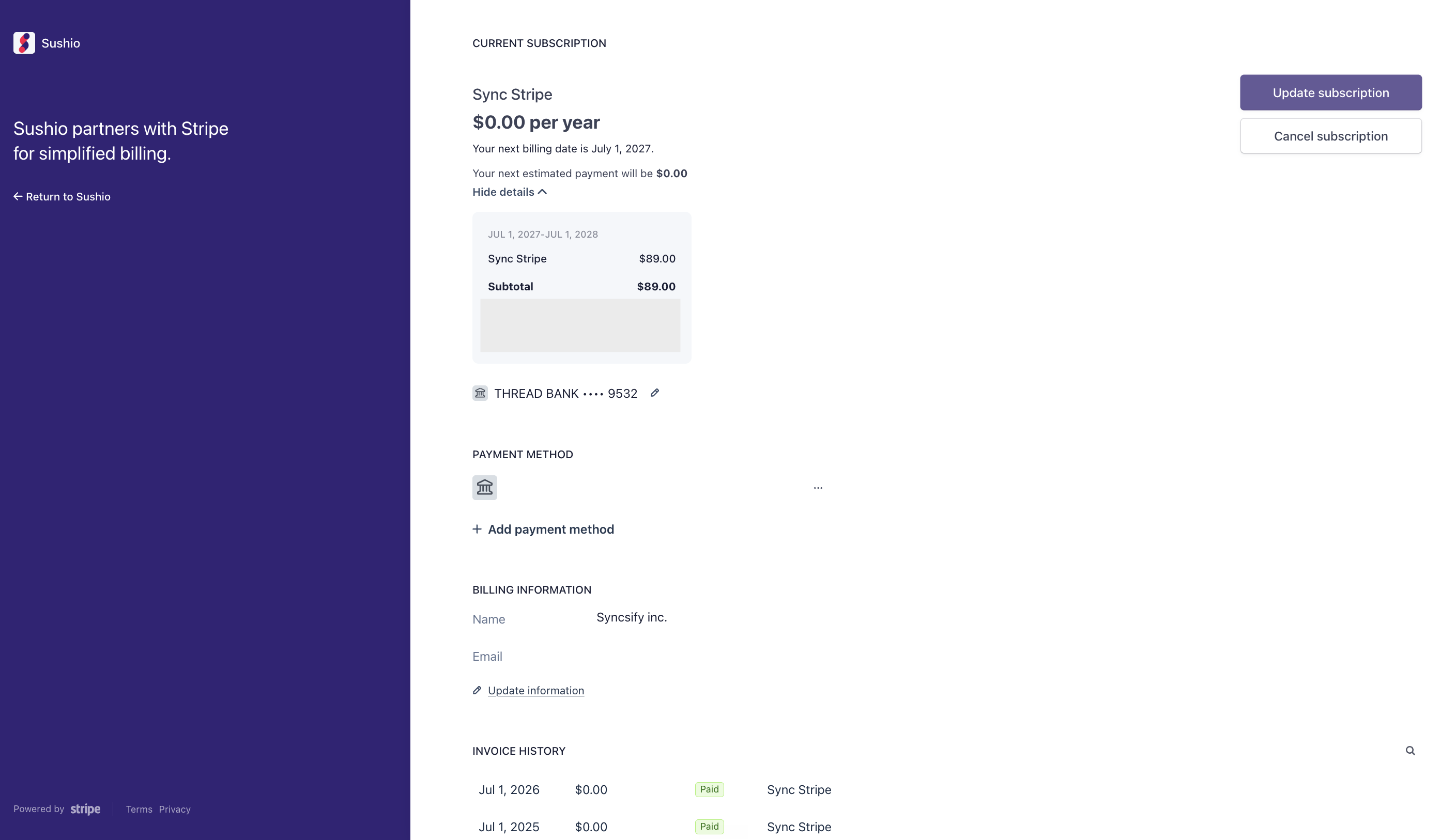
3. Update your payment details
You are taken to our secure billing portal, powered by Stripe. From there you can:
- update your payment method,
- download your invoices,
- update your billing details.
Click Return to Sushio when you are done.
Good to know
- The new card is used for the next payments of this subscription.
- You have several automations? Each one has its own subscription. Open the Subscription tab of each automation to check the card it uses.
- If a payment failed, updating your card lets Stripe retry the payment.
- To stop an automation and its subscription, click Disconnect on the Automations page. Syncing stops and the subscription is cancelled right away. A disconnected automation cannot be reactivated, but its invoices and transaction history stay available.
Need help?
Contact us through the Need help? button in the app.