
How to connect Stripe to Sush.io
Connecting Stripe to Sush.io takes a few minutes. Sush.io asks for your QuickBooks Online authorization, then your Stripe authorization, then a few settings before the first sync.
1. Create a new automation
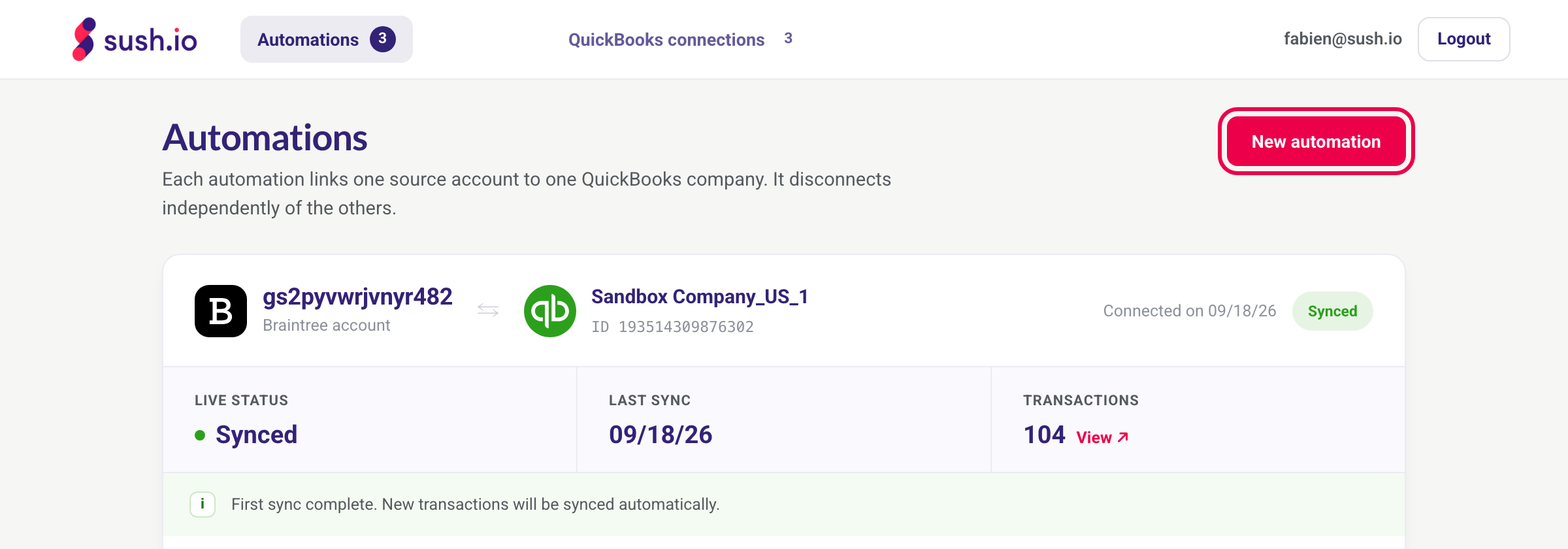
Sign in at app.sush.io. On the Automations page, click New automation.
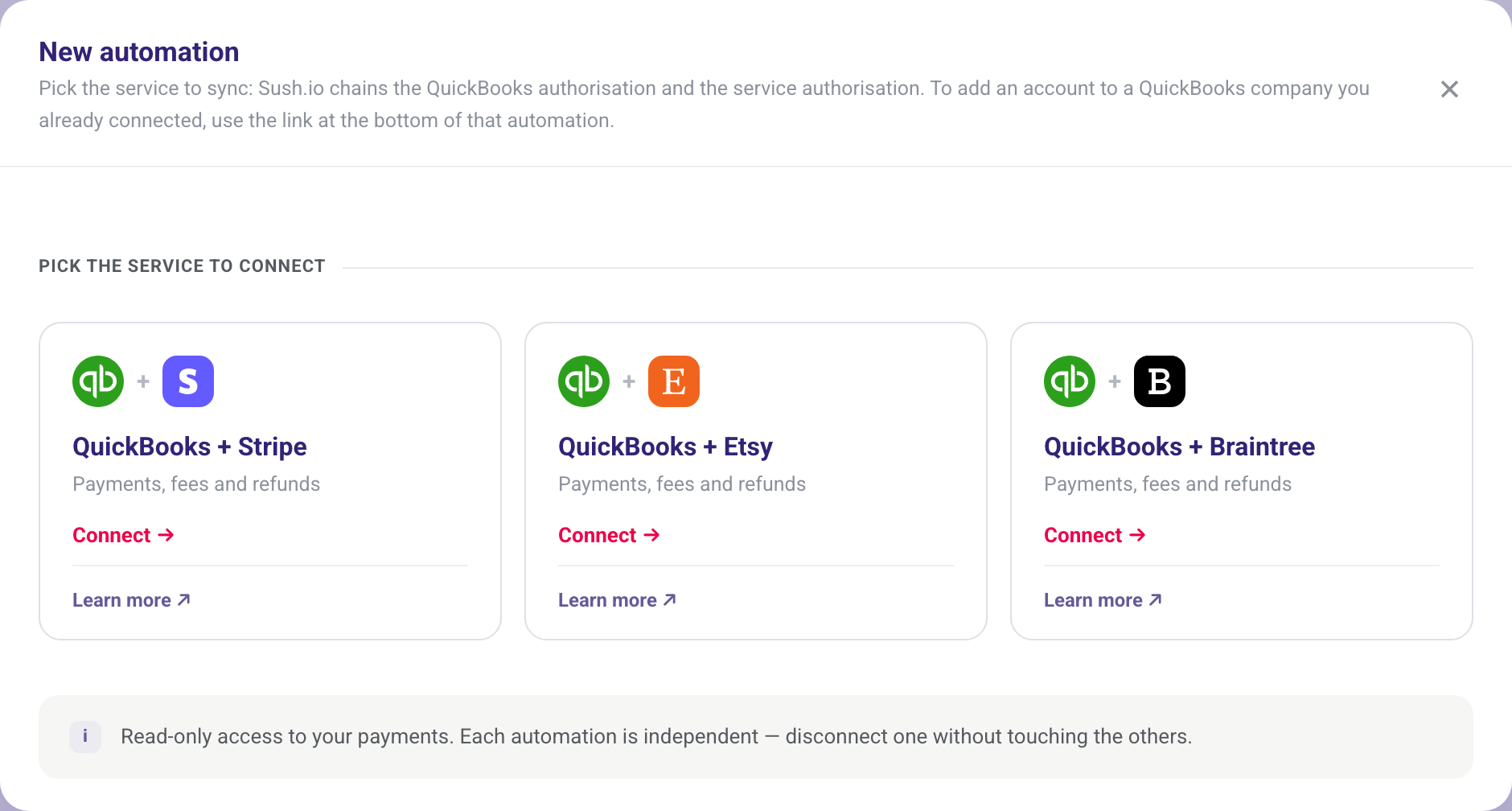
Under QuickBooks + Stripe, click Connect.
2. Connect QuickBooks Online
Click Connect to QuickBooks, sign in to your Intuit account, choose your company and authorize Sush.io.
Already connected a QuickBooks company to a Stripe automation? Sush.io offers to reuse it: pick it in the list and you skip this step.
3. Authorize Stripe
You are then taken to Stripe. Sign in, select the Stripe account to sync and authorize the connection. You come back to Sush.io automatically.
4. Set up your automation
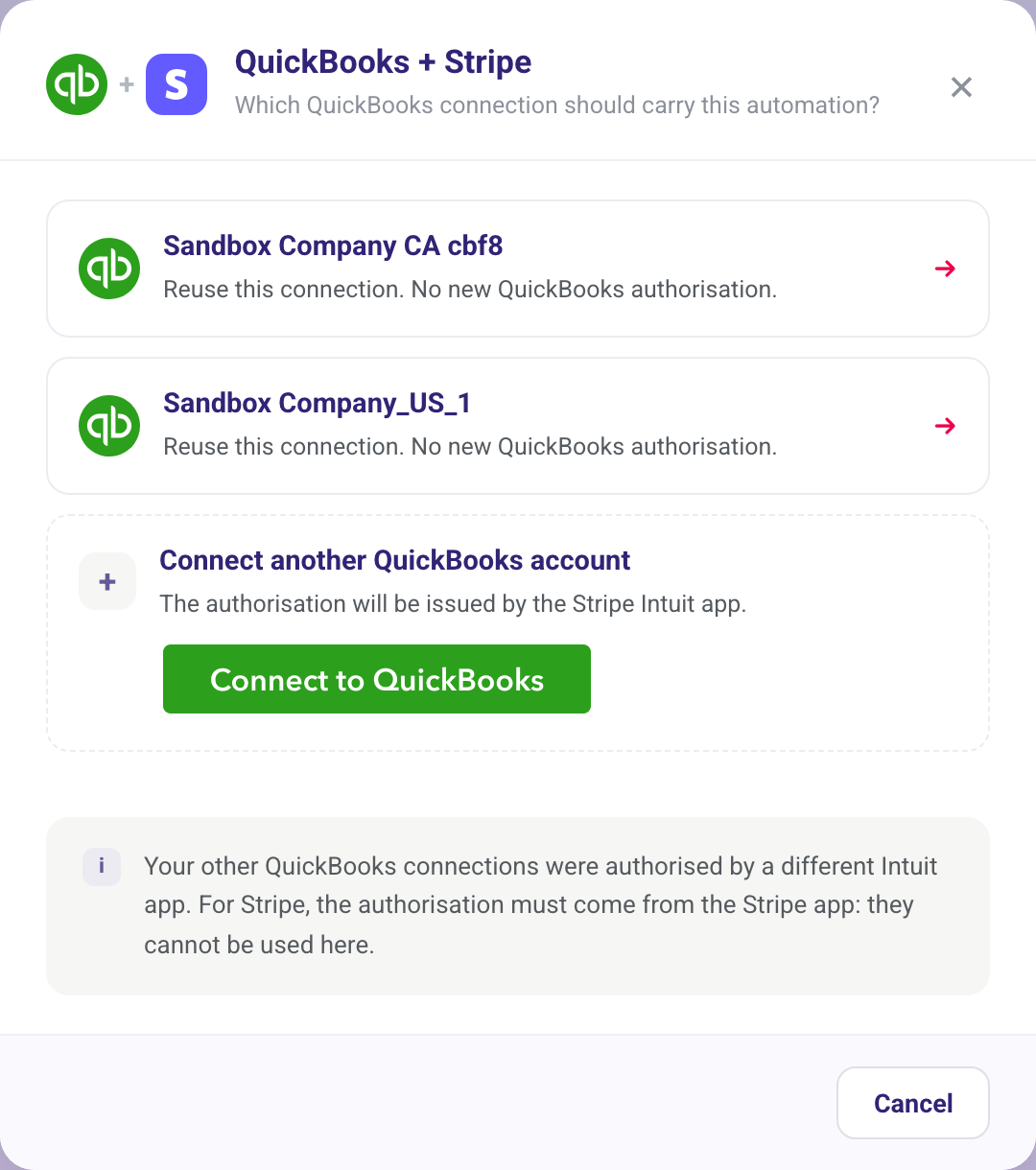
A few steps set up how your Stripe data is recorded in QuickBooks Online:
- Period: the Sync start date. Stripe transactions are synced from this day on. It is fixed once the automation is billed.
- Customers & products: create each Stripe customer and product in QuickBooks Online, or use a generic customer and a generic product (Stripe Item).
- QuickBooks accounts: the bank account where your Stripe payouts arrive, and the accounts for income and fees. Keep Create a default account and Sush.io creates them for you.
- Taxes (only if sales tax is turned on in QuickBooks Online): taxes follow your Stripe data. You can set a fallback tax code for tax amounts that Stripe returns without a rate.
- Classes (only if class tracking is turned on in QuickBooks Online): optionally assign a class to your transactions.
- Summary: review your choices. You can go back to any step.
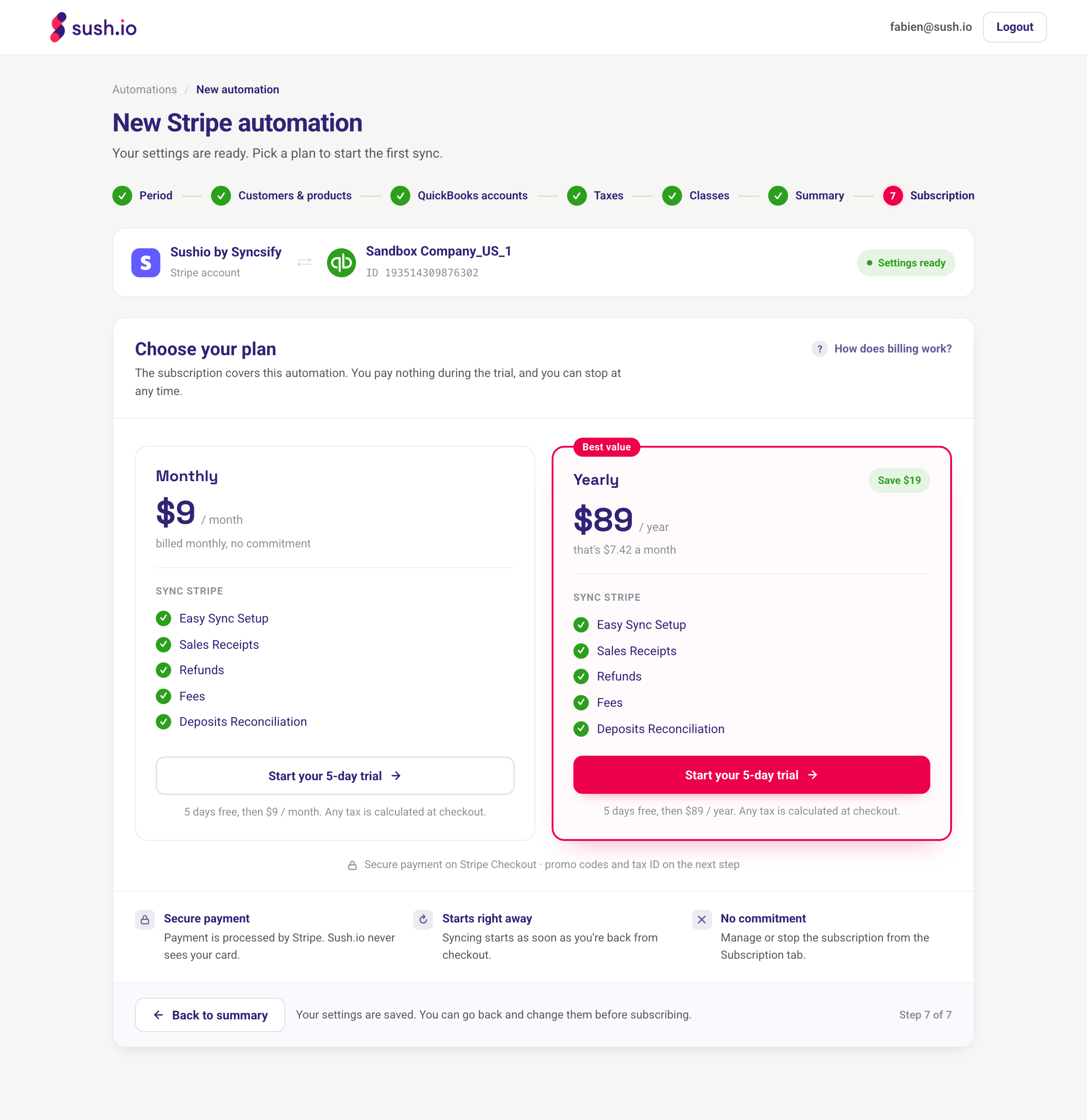
5. Choose your plan
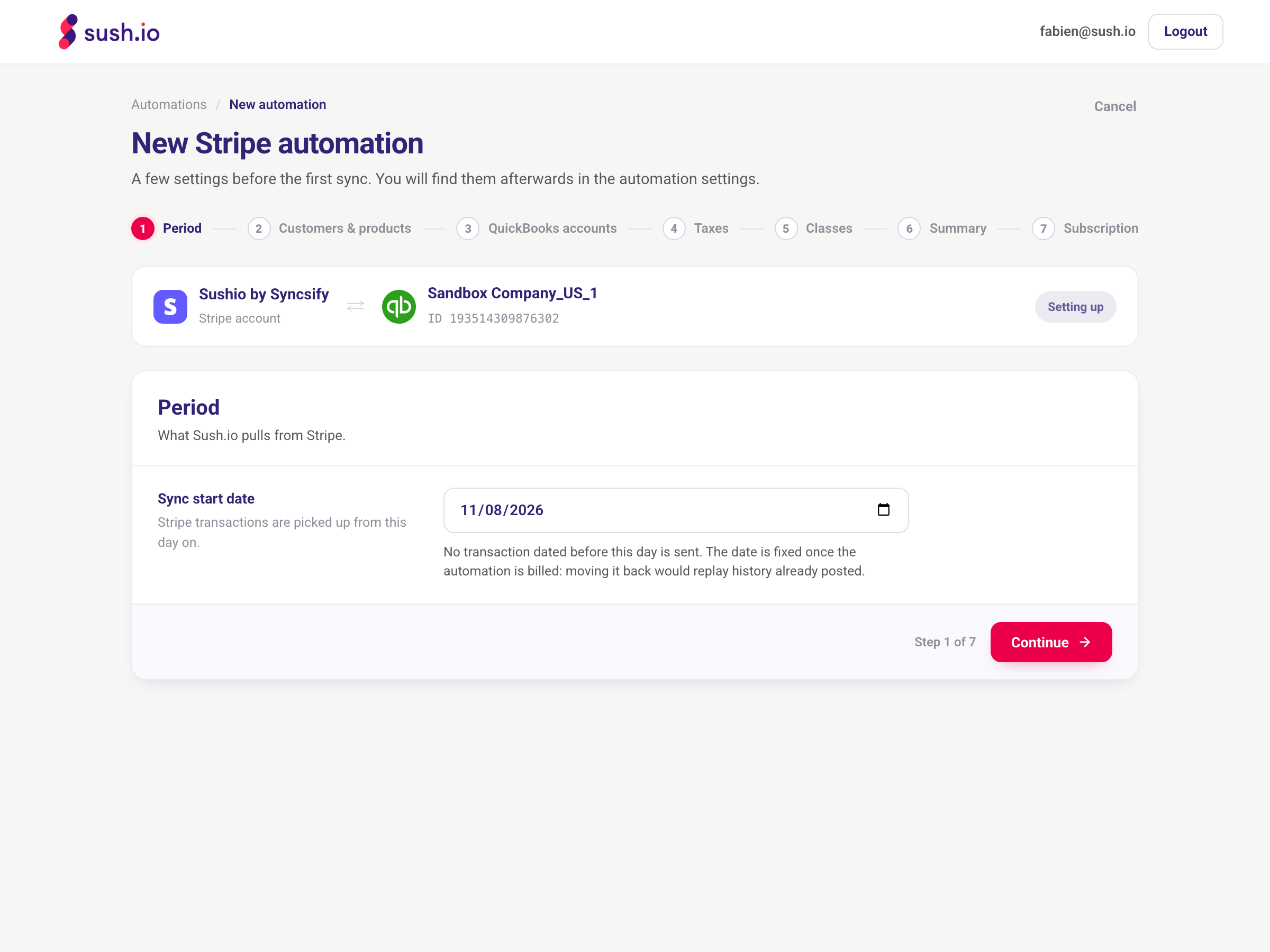
Choose the monthly or yearly plan and click Start your 5-day trial. You pay on Stripe Checkout and are not charged during the trial. The first sync starts as soon as you are back in Sush.io.
Good to know
- You can change most settings later: click Settings on your automation. Changes apply from the next sync.
- The sync start date can't be changed once the automation is billed. If you need a different date, contact us.
- Sush.io syncs automatically once a day. Click Sync now on the Automations page to sync sooner (once per hour).
Need help?
Contact us through the Need help? button in the app.